
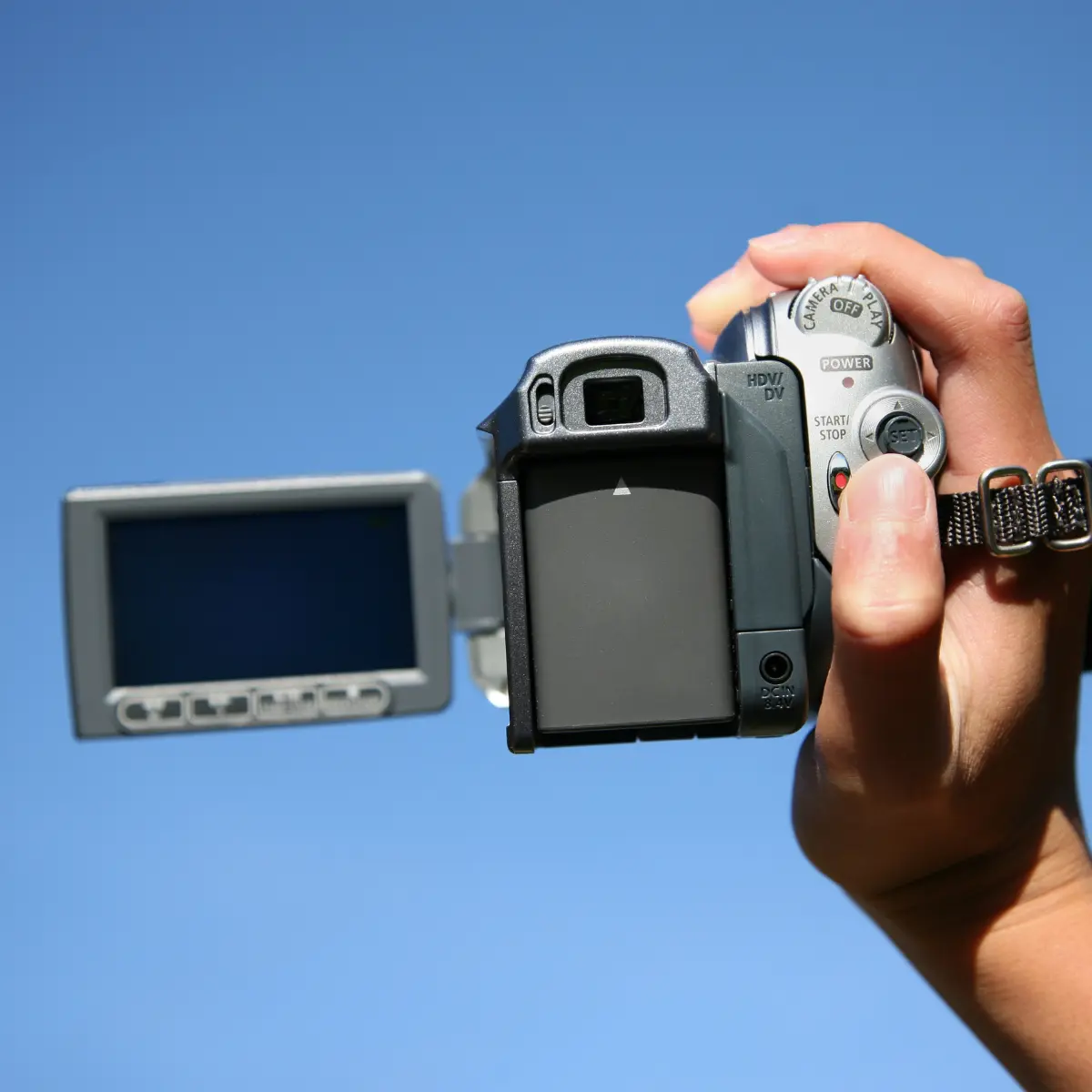
How to Digitise Camcorder Tapes at Home
The comprehensive guide to converting Video8, Hi8, Digital8, MiniDV, and VHS-C tapes. Learn the universal workflow for all magnetic tape formats.
Why Digitise Camcorder Tapes?
Camcorder tapes are even more fragile than VHS. Their smaller size means thinner tape media that degrades faster, and working camcorders to play them are becoming rare and expensive.
Failing Cameras
Working camcorders are dying out. Capacitors leak and belts snap, making it impossible to play your tapes back.
Universal Access
Consolidate all your different tape formats (Video8, MiniDV, VHS-C) into one easy-to-watch digital library.
Stop the Decay
Thin camcorder tapes are prone to snapping and sticking. Digitising now is the only way to save them.
Equipment You'll Need
The workflow is similar for most analogue camcorder formats. You mainly need the original camera and a way to capture its signal.
Working Camcorder
You MUST have a camcorder that plays your specific tape format (e.g., a Digital8 camera for Digital8 tapes).
Video Capture Card
USB device to connect the camera to your computer.
AV Cables
Usually a 3.5mm jack to Red/White/Yellow RCA cable, or S-Video for better quality.
FireWire Cable (Digital)
For MiniDV/Digital8: A FireWire cable and card gives perfect 1:1 digital transfer (better than USB).
Power Adapter
Do not rely on old batteries. Plug your camera into mains power during capture.
Sounds like too much hassle?
Our professional digitisation service starts from £12 per tape — free tracked shipping, broadcast-grade equipment, and a happiness guarantee.
Universal Camcorder Guide
Common Problems to Watch For
Digitising yourself can be tricky. Here are the most frequent issues our customers face when trying to do it at home.
DIY vs Digital Legacy
Hardware Cost
- DIY
- £100 - £400 (Gambling on eBay)
- Pro
- Included
Reliability
- DIY
- Low (Cameras often fail)
- Pro
- 100% Serviced Equipment
Digital Quality
- DIY
- Standard (USB Cables)
- Pro
- Lossless FireWire/SDI
Success Rate
- DIY
- Hit or Miss
- Pro
- Guaranteed
Don't risk your precious memories. Let the experts handle it.
Get in Touch
Have questions? We're here to help you preserve your family legacy.
Email Us
admin@digital-legacy.me
Best for detailed inquiries
Call Us
+44 7757 763 496
Tap to call from your phone
+44 7757 763 496
Message or call us in the app
Our Studio
Norwich, Norfolk
Professional digitisation facility
We're here to help!
"We know trusting someone with your memories is a big decision. That's why we promise to treat every tape and photo as if it were our own. Have a question? Ask away!"
Send us a message
Fill out the form below and we'll get back to you within 24 hours.